- HubPages»
- Technology»
- Communications»
- Smartphones»
- iPhone
Update iPhone Without iTunes

What do you use your iPhone for?
Requirements for Updating Your iPhone Without iTunes
Before you can install updates to your iPhone without connecting your device to your computer and updating it through iTunes, you must have iOS 5.0 installed on your iPhone. You can to see what version of iOS is installed on your iPhone by tapping "Settings," "General" and then "About." Scroll down your screen until you see Version in bold on the left side of the screen. If you are running anything less than version 5.0, you'll need to hook your iPhone back up to your computer one more time to update to the most recent version of iTunes, which will be version 5.0 or higher. After you are running version 5.0, you'll have the option to install updates wirelessly without having to connect your device to iTunes. Additionally, you can update your iPhone without iTunes if you're connected to a Wi-Fi network; you won't be able to update your device wirelessly using a 3G connection. Also, the update won't begin unless you have at least half of your battery remaining before beginning the update. Because various intangibles can contribute to a lengthy update download and installation (eg, weak Wi-Fi connection and bright screen settings), it's best to connect your iPhone to a power supply of some sort, preferably an AC outlet using the adapter that came with the device. And finally, because iOS 5.0 is only supported on the iPhone 3GS and newer models of the device, iPhone 3G and older models of the device aren't capable of being updated without being connected to a computer and using iTunes.


Steps for Updating Your iPhone Without iTunes
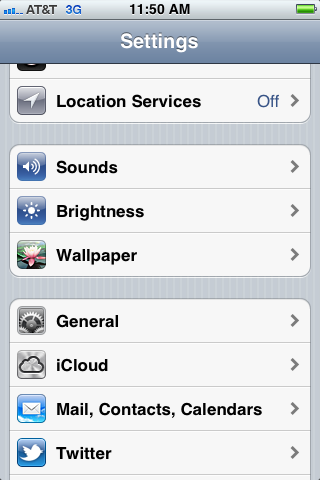
- Tap "Settings" on your iPhone home screen. If an update to iOS is available, you'll see a red notification icon in the upper-right corner of the Settings app.
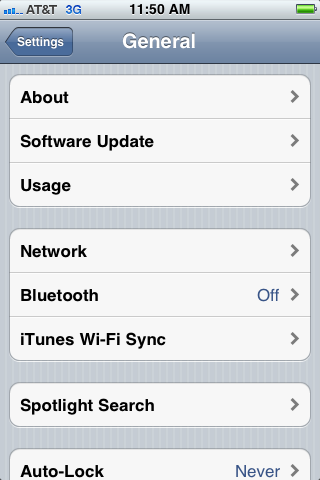
- Scroll down to the third section in the Settings screen and then tap "General."
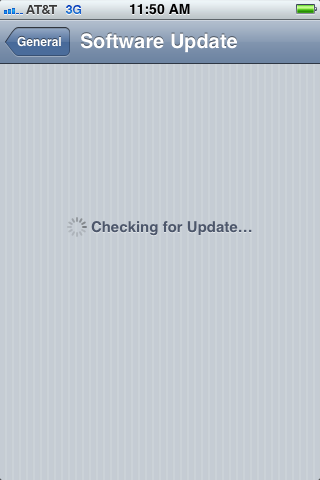
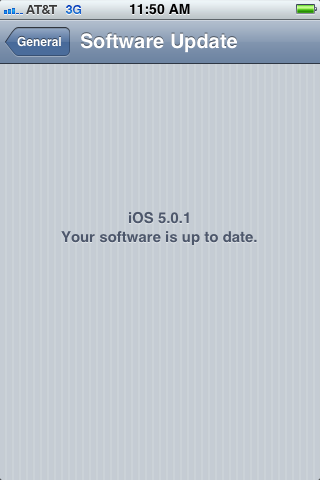
- Tap "Software Update" in the first section. The Software Update screen appears, listing the improvements and bug fixes offered in the update you're preparing to download.
- Tap "Install Now" at the bottom of the Software Update screen.
- Tap "Agree" in the lower-right corner of the Terms and Conditions screen that appears. After the update is finished downloading, the iPhone screen goes black and the update begins installing similar to the way it would if it were connected to your computer and the update were being installed from iTunes. A progress bar displays on the screen displaying the installation's progress. The iPhone may reboot one or two times while installing the various components of the update. After the update is finished, the iPhone will boot to your device's login screen.
Rate Your iPhone (All Models)
Updating iOS without iTunes
© 2011 Max Dalton